Updated on: July 17, 2026
Originally published on: July 17, 2026
Wondering if the Creative Fabrica Studio Desktop is worth downloading? I installed Creative Fabrica's new free desktop app to see if it could actually simplify my creative workflow. After spending some time exploring it, I have to say...I love it!
As the creator of Bullock's Buzz and other blogs, creating content is a huge part of my everyday life. Between writing blog posts, designing Pinterest graphics, creating printables, editing photos and videos, and planning future projects, there's always something waiting to be made.
The creative part is easy. It's all the little tasks in between that eat up the time.
Removing backgrounds. Improving older photos. Creating graphics. Finding the right tool for the job. Those small steps may only take a few minutes each, but over the course of a week, they really add up.
That's why I was curious when Creative Fabrica introduced Creative Fabrica Studio Desktop. Instead of relying on several different programs to handle those everyday tasks, I wondered if one free desktop app could simplify my workflow.
Of course, I had to see for myself.
What Is Creative Fabrica?
If you're new to Creative Fabrica, it's an online platform filled with creative resources for crafters, designers, bloggers, teachers, Etsy sellers, and small business owners. From fonts and graphics to SVGs, embroidery files, templates, and AI-powered tools, it's designed to help creators bring their ideas to life.
I've shared several Creative Fabrica products and tutorials here on Bullock's Buzz over the years. If you'd like to learn more about what they offer, be sure to check out my reviews of the Creative Fabrica Font Generator and Creative Fabrica Flow, and more.
What is Creative Fabrica Studio Desktop?
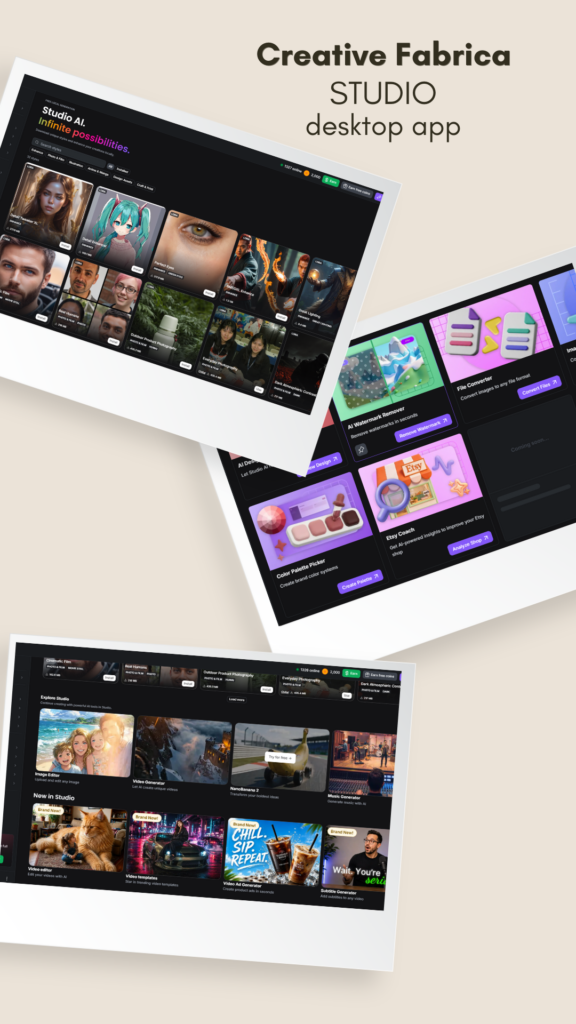
Simply put, Creative Fabrica Studio Desktop is a free desktop app version of CF's Studio tool that brings together dozens of AI-powered creative tools in one place. So instead of bouncing between multiple websites and programs, you can experiment, edit, and create from one convenient app without constantly switching back and forth.
Why I Was Excited to Try It
Since I've been a longtime Creative Fabrica user, I was genuinely excited to see them launch a desktop app for the Studio tool. I couldn't wait to find out whether it would make my everyday creative workflow easier.
The best part? Creative Fabrica Studio Desktop is completely free for both Windows and Mac. There's no subscription required, no credit card to enter, and you simply create a free account by downloading the desktop app to get started.
Even better, Creative Fabrica says everything is processed locally on your computer, so your prompts, images, and files stay on your own device.
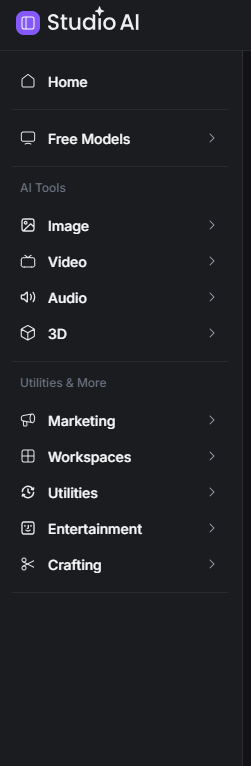
Right out of the box, you have access to four free AI tools, including the Background Remover, Image Upscaler, Image Creators, and Text to Speech, with additional tools available to explore as your workflow grows.
As someone who creates blog graphics, social media images, printables, and craft projects, I'm always looking for AI tools for creators that actually save time instead of adding more steps. That's exactly what caught my attention about the Creative Fabrica desktop app.
First Impressions
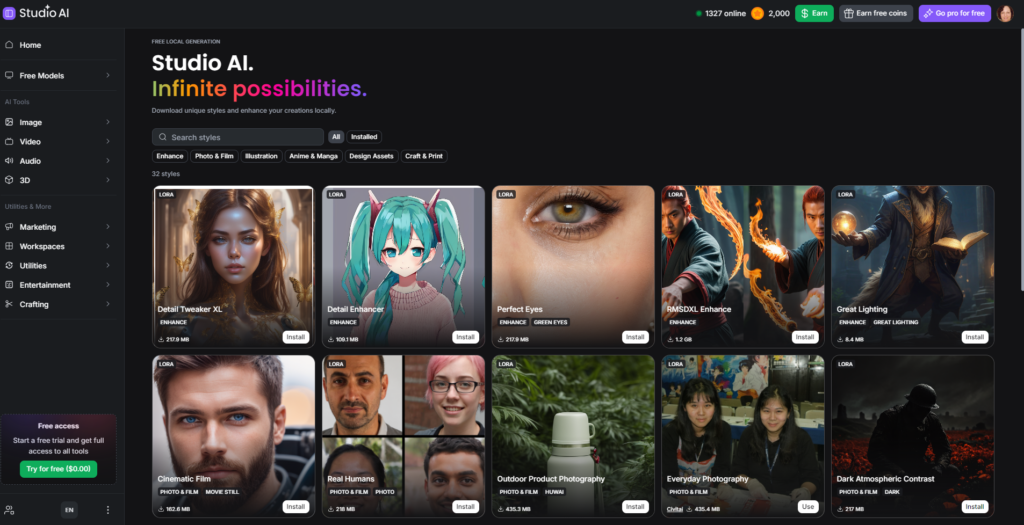
Installing Creative Fabrica Studio Desktop only took a few minutes, and after logging in, I spent a little time exploring before deciding what I wanted to test. It didn't take long to realize there was a lot more included than I expected.
In addition to the free tools, I found features for mockup generation, SVG creation, logo design, product photography, AI video, and more.
Rather than trying to test everything in one afternoon, I decided to focus on the tools I could immediately see myself using most often.
Putting Creative Fabrica Studio Desktop to the Test
While I wanted to experiment with every single feature, there was no way I could test all of them in one afternoon.
Since I wear a lot of hats as a blogger, I decided to share my experience and thoughts on some of the AI tools for creators that I thought would save me the most time.
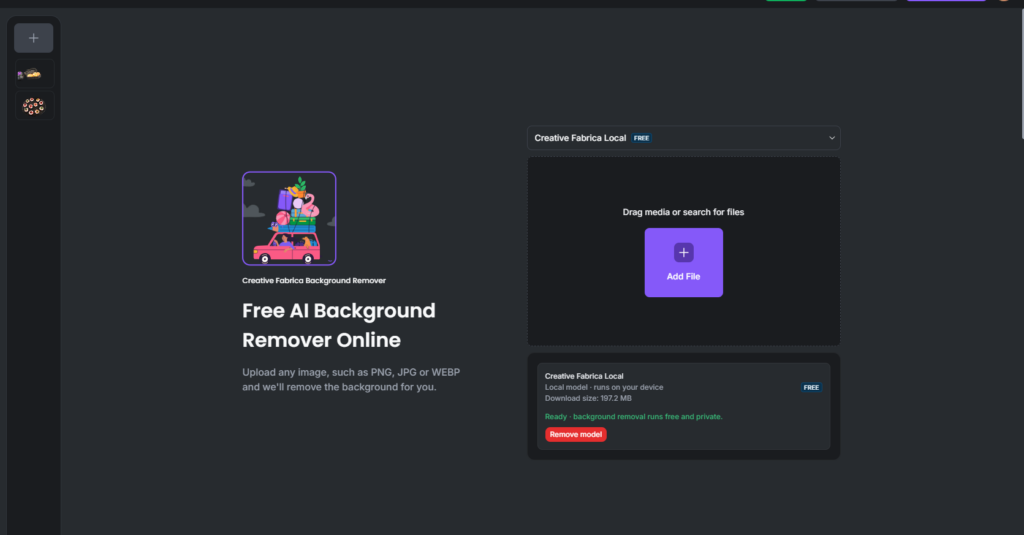
Background Remover
Naturally, this was the very first tool I clicked.
I use an AI background remover all the time for Pinterest graphics, blog images, product photos, and social media, so this was the perfect feature to test first.
If this one worked well, I already knew it'd save me a lot of time.
My Thoughts
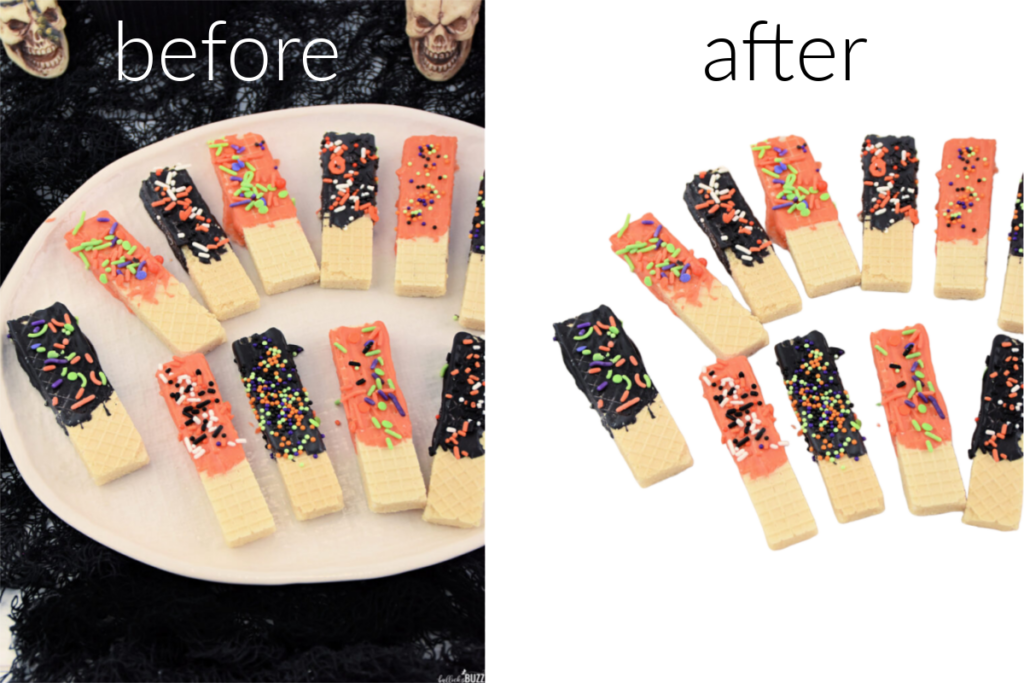
Rather than testing the Background Remover on a random image, I chose an older recipe photo from Bullock's Buzz that is due for an update. My goal was to remove the background so I could create a fresh Pinterest graphic without having to remake the recipe or retake the photo.
The tool couldn't have been much easier to use. I simply uploaded my image, clicked Remove, and within seconds the background was gone. Before using the tool for the first time, I did have to download the local AI model, but it was a small download that installed quickly and only took a minute or two.
I was impressed with how accurately it removed the background. The edges looked clean, and I didn't have to spend time fixing or touching up the image afterward.
For me, this is a tool I'll definitely use again. Whether I'm updating older blog posts, creating new Pinterest graphics, or designing promotional images, it has the potential to save me both time and a few extra steps in my workflow.
For bloggers, Etsy sellers, and anyone creating product images, having a background remover built directly into Creative Fabrica Studio Desktop is a real time saver.
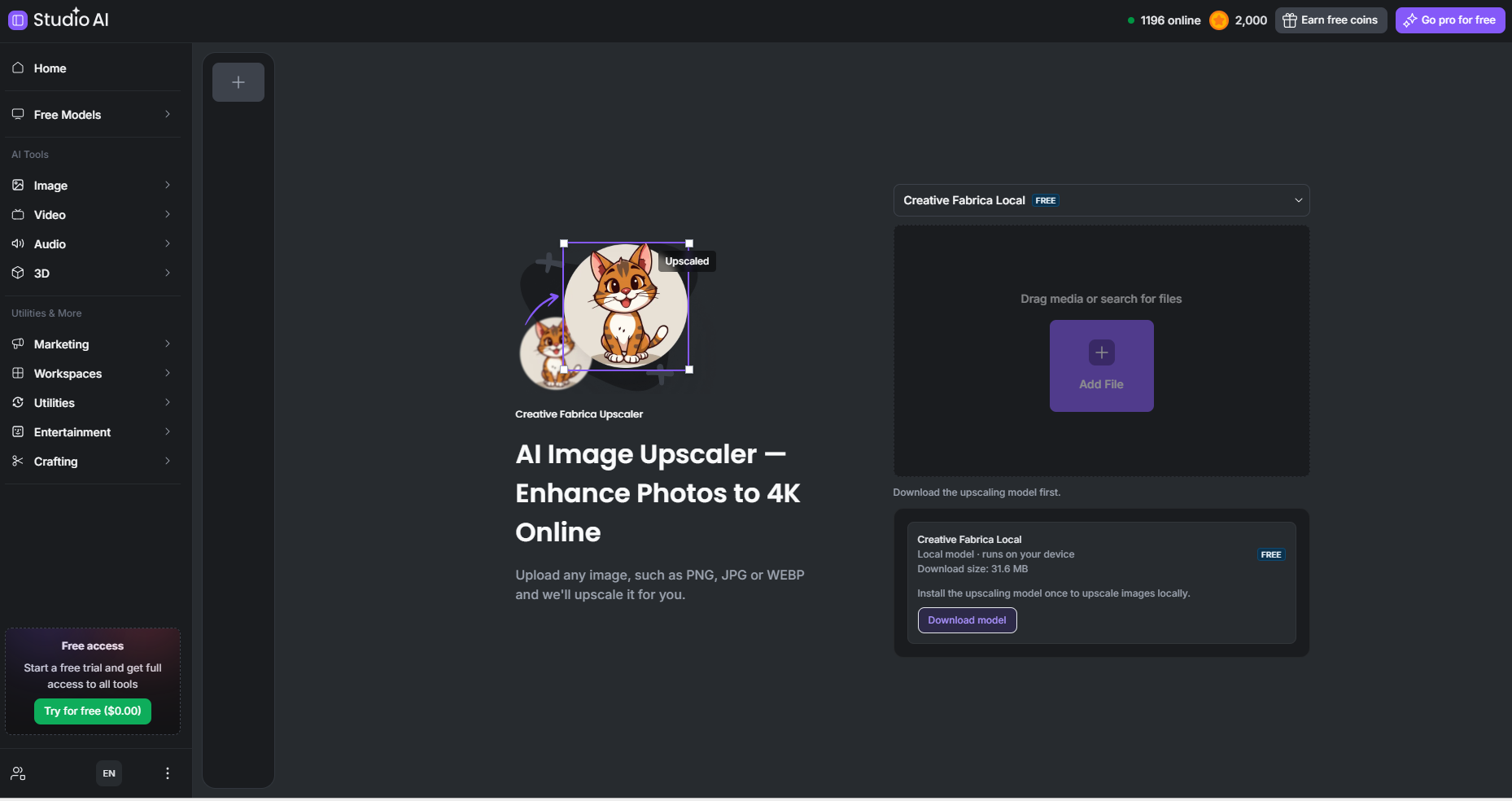
Image Upscaler
Next, I decided to try the AI Image Upscaler, another feature I can see myself using regularly.
If you've been blogging for any length of time, chances are you have older photos you'd love to freshen up without recreating the entire project. I know I do, and that's exactly why this tool caught my attention.
If it could sharpen older images enough to give them new life, I could use it when updating evergreen blog posts, refreshing Pinterest pins, and creating better-looking social media graphics.
My Thoughts
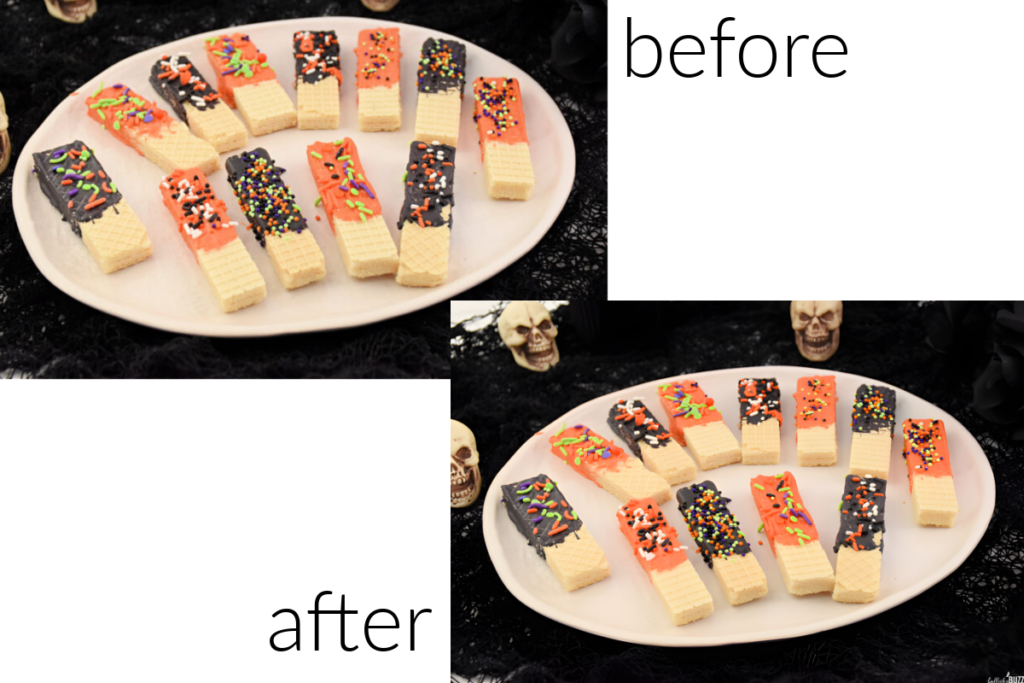
Older photos don't always need to be replaced, but they can often benefit from a little improvement. Since I regularly update older posts on Bullock's Buzz, I wanted to see whether the Image Upscaler could give one of my existing recipe photos a sharper, more polished look without having to remake the recipe.
Using the tool couldn't have been easier. I simply uploaded my image, clicked the Enhance button, and let the app do the rest. Processing took just over a minute on my computer.
I could immediately see the difference. The enhanced image looked much sharper and more defined than the original. Details were clearer, and the colors appeared brighter and richer without looking unnatural. For an older blog photo, it gave the image a much fresher look.
I can definitely see myself using this tool when updating older content on Bullock's Buzz. Instead of replacing every outdated photo, the Image Upscaler offers a quick way to improve image quality before creating new Pinterest graphics, social media posts, or refreshing existing blog content.
What I liked most was how quick and convenient it was. Rather than having to open another editing program and spending time tweaking brightness, clarity, sharpness, and other settings myself, the app enhanced the image for me in just a few clicks. When you're creating content regularly like I am, little time savers like that really add up.

Other Features That Caught My Eye
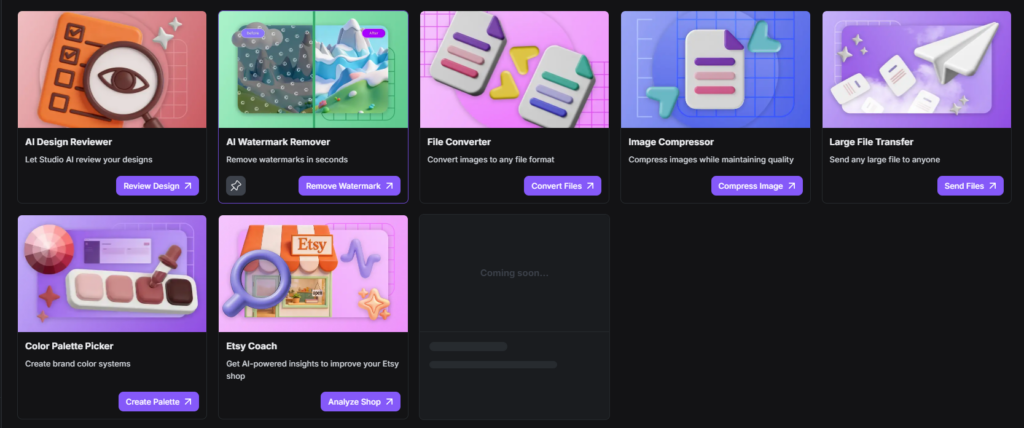
While I focused on the AI tools for creators that fit my workflow, Creative Fabrica Studio Desktop includes dozens of additional creative tools for almost every type of creator.
During my first look around the app, I found tools for AI video, logo creation, product photography, SVGs, file conversion, Etsy shop insights, 3D design, and much more
Honestly, I could spend days exploring everything that's included.
And knowing me...I probably will.
Every time I clicked another category, I found something else that made me stop and think, "Okay...that's really cool."
I have a feeling this is one of those apps where you discover new favorite tools every time you open it.
Why Local AI Matters
One thing I appreciated while learning about Creative Fabrica Studio Desktop is that the AI tools are designed to run locally on your computer.
According to Creative Fabrica, that means your prompts, images, and files stay on your own device instead of being processed elsewhere.
For creators working with original artwork, product photos, client projects, or unpublished designs, that's a feature worth mentioning. It's nice knowing your creative work stays under your control while you're experimenting with different ideas.
Who I Think Will Benefit Most
After spending some time with the app, I think Creative Fabrica Studio Desktop has the potential to be useful for a wide variety of creators.
I can especially see it being helpful for:
- Bloggers updating photos and creating graphics
- Etsy sellers preparing product images
- Cricut crafters creating custom projects
- Print-on-demand designers
- Small business owners
- Social media content creators
- Anyone who regularly edits images or creates digital content
Since the app is free, there's really no downside to downloading it and seeing which tools fit your own workflow.
One creator might use it primarily for removing backgrounds, while another may find themselves using the AI Image Generator every day. That's one of the things I like most about it. You don't have to use every feature for it to be worthwhile.
Frequently Asked Questions
Is Creative Fabrica Studio Desktop free?
Yes. Creative Fabrica Studio Desktop is completely free to download for both Windows and Mac. You only need to create a free Creative Fabrica account to get started. No paid subscription or credit card is required.
What free tools are included?
At the time I tested the app, the free tools included:
- AI Background Remover
- Image Upscaler
- AI Image Generator
- Text-to-Speech
Creative Fabrica may add additional features over time.
Who is Creative Fabrica Studio Desktop for?
The app is designed for creators of all kinds, including bloggers, Etsy sellers, Cricut users, print-on-demand businesses, designers, small business owners, and content creators looking to simplify their workflow.
Does the app work on Windows and Mac?
Yes. Creative Fabrica Studio Desktop is available for both Windows and macOS.
Do I need multiple programs anymore?
That depends on your workflow, but Creative Fabrica Studio Desktop brings several commonly used creative tools together in one application. If the included tools meet your needs, it can reduce the number of websites and programs you use every day.
My Final Thoughts
After spending some time exploring Creative Fabrica Studio Desktop, I can honestly see myself using it as part of my regular workflow.
The Background Remover and Image Upscaler alone are worth having, and knowing there are dozens of other creative tools waiting to be explored makes me even more excited to keep experimenting.
If you're looking for a free way to simplify parts of your creative process, I definitely think it's worth downloading and seeing which tools become your own favorites.